
5.3 Display
Scale. View > Scale 1x/2x/3x, or press F2 to cycle. Scaling is always a whole number of pixels, so the picture stays sharp.
Fullscreen. F11, or View > Fullscreen. The image is centred with black bars, keeping the correct shape. F11 again returns. (Esc will not: it is the Break key.)
CRT filter. View > CRT Filter overlays soft scanlines, for a more period-accurate look.
Layers. The Next composites several video layers — the classic ULA screen, Layer 2, the tilemap and up to 128 sprites — and the running program decides their stacking order and transparency. There is nothing to configure; it is simply what you see.
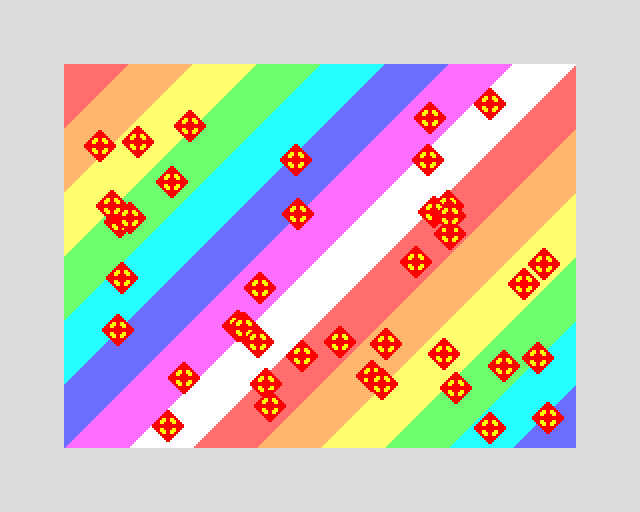
You can, however, pull them apart, which is useful when something looks wrong and you want to know which layer is responsible:
jnext --headless demo.nex --delayed-screenshot l2.png \
    --delayed-screenshot-layers layer2
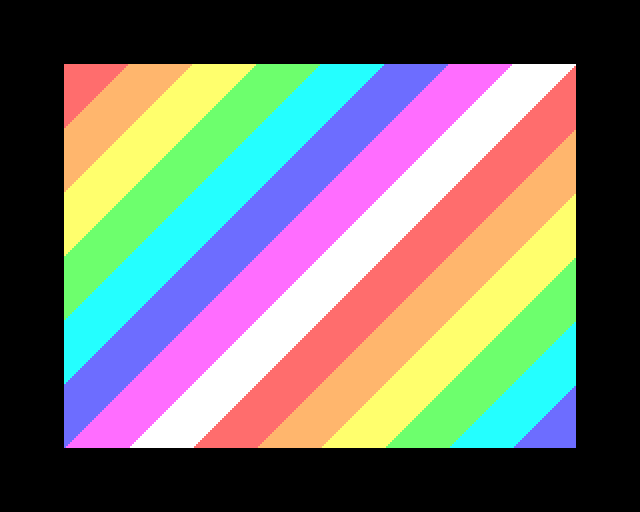
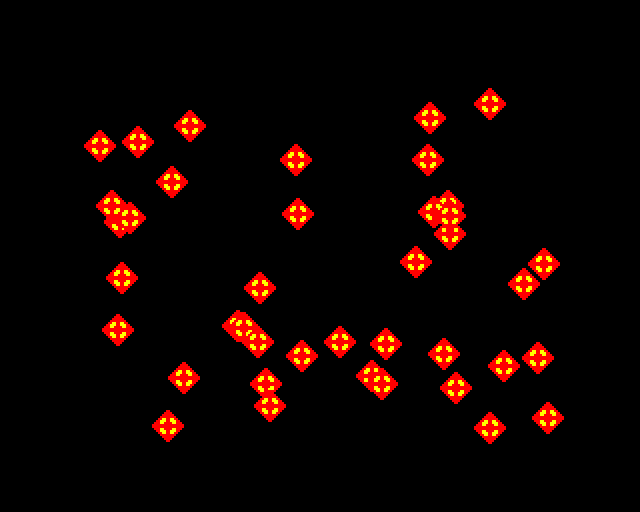
The same frame with only Layer 2, and with only the sprites. Excluded layers
are treated as switched off, so what remains still composites normally.
Leaving out ula also removes the border, since that is the ULA's job.
Screenshots. File > Save Screenshot… (Alt+S) or the toolbar camera button writes a PNG. JNEXT remembers the directory. For scripted, repeatable captures, see chapter 7.